Step 3: FMOS Initial Setup Authentication for Azure
The initial setup process for machines deployed in cloud environments differs from the process for machines deployed in traditional data centers. Because cloud environments do not typically provide a mechanism for accessing the graphical console of a machine, the FMOS Initial Configuration Wizard is not available. Instead, FMOS provides a web-based alternative, the FMOS Initial Setup UI.
The FMOS Initial Setup UI is hosted by the FMOS Control Panel server, and as such is available over TLS on TCP port 55555.
The FMOS Control Panel always uses a self-signed certificate initially, so browsers will present a security warning. This cannot be avoided, because the machine has not yet been configured and so does not have a host name or access to a trusted certificate authority.
The FMOS Initial Setup is responsible for collecting critical information about the system that is required in order to perform the initial deployment. Among the values it collects are the credentials for the first FMOS administrative user. This user is authorized to log in to the FMOS CLI using SSH, run the fmos command, and use the FMOS Control Panel.
Initial User Account
When FMOS boots for the first time in a cloud environment, it will automatically create the initial administrative user account. This must be done before you can complete the FMOS Initial Setup process. The process for creating the user at first boot will be:
-
The system will copy the OVF metadata from the virtual removable disc to persistent storage.
- The system will create a new Linux user account. The username is as specified by the user during VM creation, which is provided in the OVF metadata.
- The system will assign the FMOS Administrator privilege to the account.
-
The system will set the password for the account. The password is as specified by the user during VM creation, which is provided in the OVF metadata; if the user specified an SSH key instead of a password, the password is the first 12 characters of the base64-encoded SHA256 fingerprint of the SSH public key.
Setup UI Administration
Because the administrator must be prompted for the instance ID before being allowed to change the password for the initial FMOS administrator account, the FMOS Initial Setup must be protected with authentication. This will ensure that the user provides proper credentials before being allowed to perform the FMOS Initial Setup process and thereby changing the initial account password. The authentication procedure will be:
- Open a web browser to navigate to the host name or IP address of SIP running the Azure VM. For example, https://<hostname_or_IPaddress>:55555/setup, replacing <hostname_or_address> with the host name or IP address of the instance to configure.
-
The UI will display an Authentication dialog box before opening the FMOS Initial Setup form.
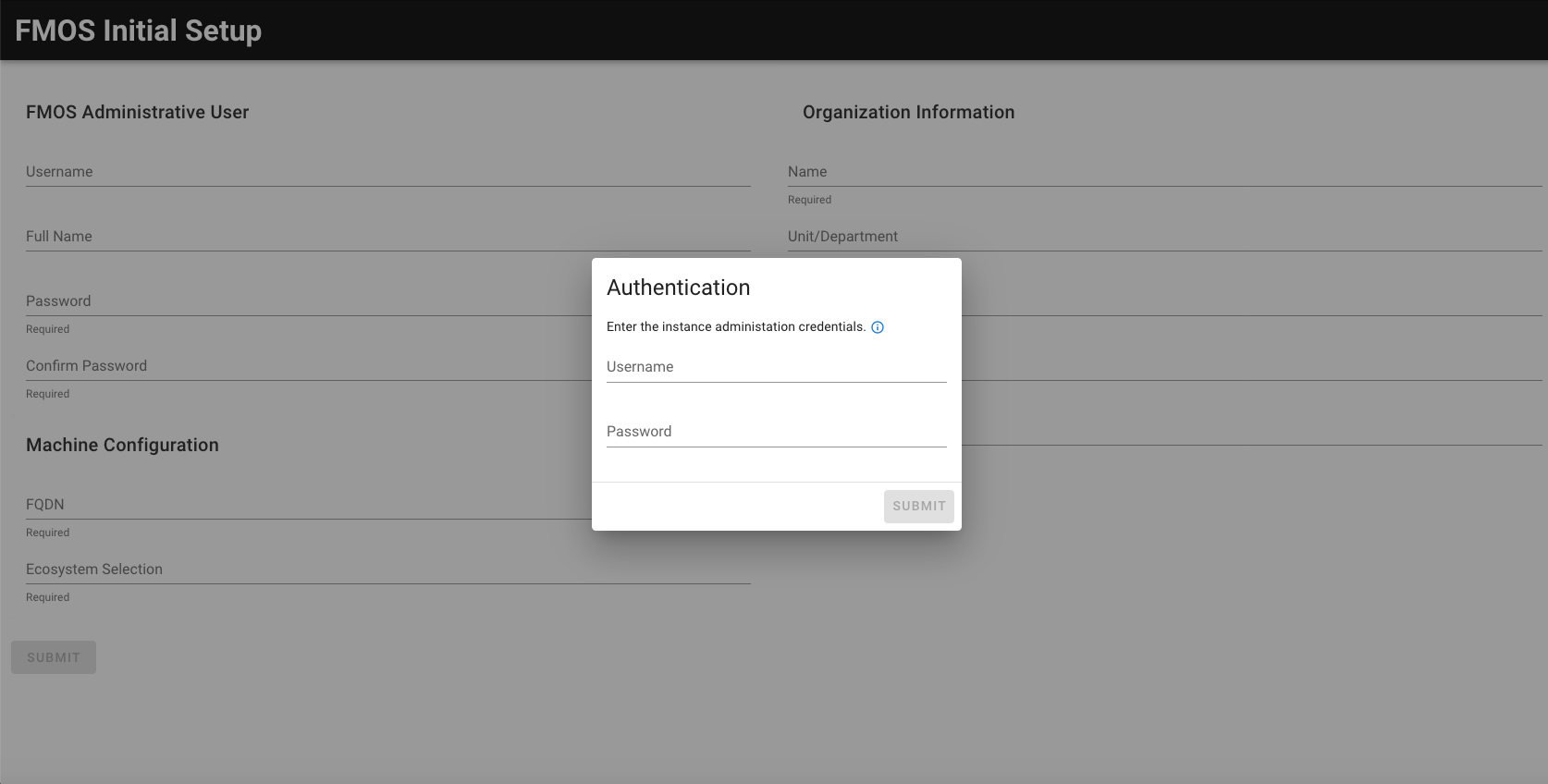
- Username is the username for the created VM.
- Password is the password for the created VM.
- Click Submit.
-
Following successful authentication, the UI will hide the authentication dialog box and display the FMOS Initial Setup form.